Related Searches:


Now Reading: How to 3D Scan an Object With a Smartphone
1
-
01
How to 3D Scan an Object With a Smartphone
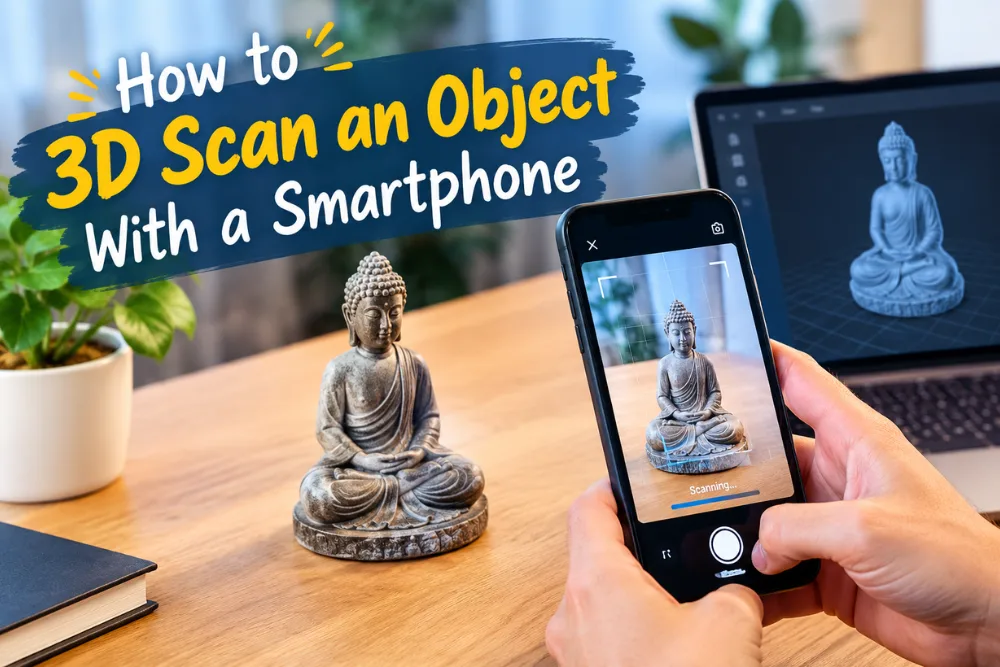
You can 3D scan an object with a smartphone by using a 3D scanning app, capturing multiple photos or video from different angles, and letting the app process them into a 3D model. Apps such as KIRI Engine support smartphone based scanning, while phones with LiDAR can provide faster and more detailed results.
Choose the Right 3D Scanning App
The first step in learning how to 3D scan an object is choosing a suitable scanning app. Your smartphone can capture the images or data needed to recreate an object, but the scanning app does the important work of turning that information into a three dimensional model.
KIRI Engine is one option that works on both iPhone and Android devices. It supports scanning methods including photogrammetry and LiDAR scanning on iPhones equipped with LiDAR. You can also search your phone’s app store for other 3D scanning applications and choose one that supports the scanning method you want to use.
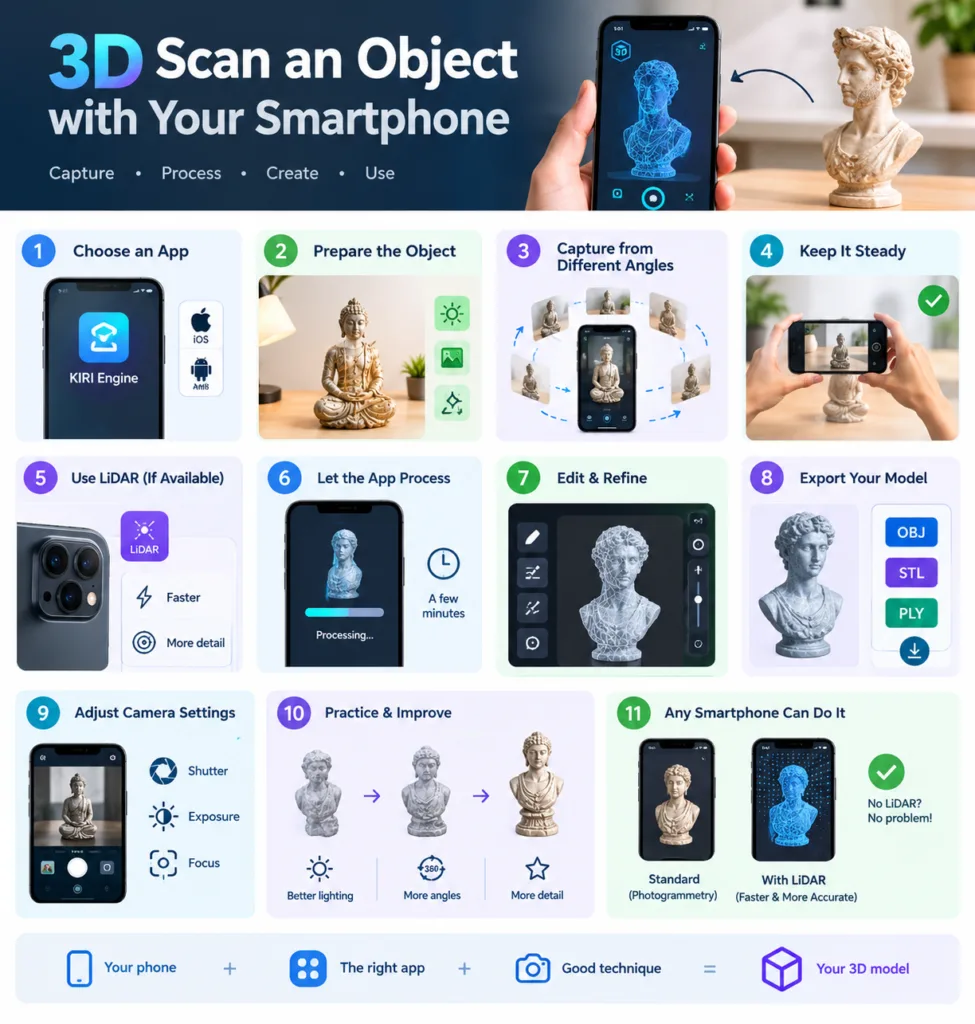
This infographic shows the key steps—from choosing a 3D scanning app and preparing the object to capturing multiple angles, using LiDAR, processing and refining the scan, and exporting the final model in formats such as OBJ, STL, and PLY.
For most smartphone users, photogrammetry is a practical way to begin. It uses multiple images of an object taken from different angles to create the model. If your phone has a LiDAR sensor, you may also have access to LiDAR based scanning, which can provide faster and more detailed results.
Prepare the Object Before Scanning
Preparing the object and its surroundings can make a noticeable difference to the final scan. Start by placing the object in a well lit area with even lighting. Strong shadows and reflections can affect the quality of the scan, so keeping the lighting consistent is important.
You should also make sure the object is easy for the scanning app to distinguish from its background. If the object blends into the background, the app may have more difficulty identifying its shape and edges.
The type of object you choose also matters. Shiny, transparent, or very uniform colored objects can be more difficult to scan. Some scanning applications have special features that can help with challenging surfaces, but choosing an object with visible details can make the process easier, especially when you are learning.
Capture the Object From Different Angles
Once your object and environment are ready, you can begin capturing it. This is one of the most important parts of learning how to 3D scan an object with a smartphone.
For photogrammetry based scanning, you generally need to take multiple pictures of the object from different angles. Around 20 to 50 pictures can be used to capture the object from all sides. The goal is to give the app enough visual information to understand the object’s shape.
Move around the object smoothly while taking your pictures. Try to keep a consistent distance from the object during the scanning process. Maintaining a similar distance can help create more uniform results.
You should also make sure you capture the different sides of the object rather than concentrating only on one area. The more complete your visual coverage is, the more information the app has available when creating the three dimensional model.
Keep Your Smartphone Steady and Consistent
Consistency is important when scanning an object with a smartphone. Moving around the object smoothly can help you capture a better collection of images.
Try not to suddenly change your distance from the object while taking pictures. Keeping a consistent distance can help the scanning application process the images more effectively.
Patience also matters. If you rush through the capture process, you may miss important areas of the object. Taking your time can be especially useful when the object has complex shapes or fine details.
With practice, you can become more comfortable moving around an object and capturing the images needed for a successful scan.
Use LiDAR If Your Phone Supports It
Some smartphones have LiDAR sensors that can be used for three dimensional scanning. The provided information specifically mentions iPhone 12 Pro or later as an example of phones that support LiDAR.
LiDAR based scanning can provide faster and more detailed results compared with some other smartphone scanning methods. If your phone supports LiDAR, you can use a compatible application to take advantage of this capability.
That does not mean you need a LiDAR equipped phone to create a three dimensional model. Photogrammetry can work well on most smartphones and provides a practical way to scan objects without specialized scanning hardware.
For people who already have a LiDAR equipped smartphone, however, this feature can make the scanning process faster and can help produce more precise results.
Let the App Process the Scan
After you have captured enough images or collected the required LiDAR data, the scanning application processes the information to create a three dimensional model.
The processing time can vary depending on the application and the number of images you have captured. In some cases, the process may take a few minutes.
This is the stage where your collection of photographs or LiDAR information becomes a usable three dimensional representation of the object.
Some applications also provide editing or refinement features directly within the app. These features can allow you to improve the model before exporting it.
If the first result is not exactly what you expected, practice can help. Scanning is a process where better preparation, more complete coverage, and careful image capture can improve the final result.
Edit and Refine Your 3D Model
Once the application has generated your model, some apps allow you to edit or refine it directly within the application.
This can be useful if you notice areas that need improvement after processing. The quality of the final model depends partly on the images or scanning data captured earlier, so careful preparation and capture remain important.
When scanning complicated objects or objects with fine details, patience and practice can help you achieve better results. You may need to become familiar with how your chosen application responds to different lighting conditions, surfaces, angles, and distances.
The more you practice, the easier it becomes to understand how to capture the information your scanning application needs.
Export Your 3D Model
After you finish processing and refining the scan, you can export the three dimensional model. The provided information mentions formats such as OBJ, STL, and PLY.
These formats can be used for different purposes, including 3D modeling software, virtual reality, and 3D printing.
Exporting the model means you are no longer limited to viewing it inside the scanning application. You can take the generated model into compatible software or use it for the purpose you have in mind.
Before exporting, it can be useful to make sure the model has been processed correctly and that the areas you wanted to capture are represented properly.
Adjust Camera Settings for Better Results
Some scanning applications provide manual control over camera settings such as shutter speed and exposure. Having control over these settings can help improve scan quality.
The exact settings you use will depend on the object and the environment. However, being able to adjust the camera can give you more control over how the object is captured.
If you are new to smartphone based 3D scanning, you can start with the automatic settings offered by your application and gradually explore manual controls as you become more comfortable.
The main goal is to capture clear and consistent information about the object so the application can create a useful model.
Practice Makes Smartphone 3D Scanning Better
Your first scan may not be perfect, and that is completely normal. Patience and practice can improve scan quality, particularly when you are working with complex shapes or fine details.
Every object presents its own challenges. Some surfaces are easier for scanning applications to understand, while shiny, transparent, or very uniform colored objects can create difficulties.
Instead of expecting a perfect model immediately, use your early scans to understand how the process works. Pay attention to lighting, distance, movement, and the number of images you capture.
As you gain experience, you will become better at preparing objects and capturing the information needed for a successful three dimensional model.
Can Any Smartphone 3D Scan an Object?
Photogrammetry works well on most smartphones, so you do not necessarily need an expensive device or a dedicated 3D scanner. A compatible scanning application and a smartphone camera can be enough to get started.
Newer phones with LiDAR sensors can provide more precise scans and faster results. However, LiDAR is not essential for smartphone based 3D scanning.
The best approach depends on the phone you already have and the scanning application you choose. If your phone does not have LiDAR, you can still use photogrammetry to create three dimensional models from multiple photographs.
Conclusion
Learning how to 3D scan an object with a smartphone is easier than it may seem. You can start by choosing a suitable scanning application, preparing the object in an evenly lit environment, and capturing multiple images from different angles. Keeping a consistent distance and moving smoothly around the object can help produce more uniform results.
After capturing the object, the application processes the images or LiDAR data into a three dimensional model. You can then refine the model if the application provides editing features and export it in formats such as OBJ, STL, or PLY.
In my suggestion, beginners should start with a simple object and focus on getting the lighting, distance, and image coverage right. With patience and practice, your smartphone can become a useful tool for creating three dimensional models.
Frequently Asked Questions
How do I 3D scan an object with a smartphone?
Use a compatible 3D scanning application, capture multiple images or video from different angles, and allow the application to process the information into a three dimensional model.
How many pictures do I need for a smartphone 3D scan?
For photogrammetry based scanning, you usually need around 20 to 50 pictures from different angles and all sides of the object.
Can I 3D scan an object without LiDAR?
Yes. Photogrammetry works well on most smartphones and does not require a LiDAR sensor.
Which smartphone app can I use for 3D scanning?
KIRI Engine is one option that works on iPhone and Android devices and supports photogrammetry and LiDAR scanning on compatible iPhones.
Is LiDAR better for 3D scanning?
Phones with LiDAR can provide faster and more precise scanning results, but photogrammetry can also work well on most smartphones.
What objects are difficult to 3D scan?
Shiny, transparent, and very uniform colored objects can be more difficult to scan successfully.
What can I do with a scanned 3D model?
You can export the model in formats such as OBJ, STL, or PLY for use with 3D modeling software, virtual reality, or 3D printing.

Dony Garvasis is the founder of Search Ethics, a freelance SEO consultant, and a passionate technology blogger. With over 8 years of experience in SEO, blogging and content marketing, I provide expert content on Tech, digital marketing, SEO, Artificial intelligence, gadgets, science, automobiles, lifestyle, tips, tutorials and much more. My mission is simple: Ethical Search, Genuine Results! I will make sure people everywhere get trustworthy and helpful information.