Now Reading: How to Sign a Document in Google Docs
-
01
How to Sign a Document in Google Docs
Electronic signatures make it easy to approve documents, contracts and agreements without printing or scanning. Google Docs supports speedy digital signing through the Docusign add on. This guide explains how to set up the integration, how to add your electronic signature with Google’s built in tool and how to send documents for others to sign, all within Google Docs.
Installing the Docusign Add On in Google Docs
To begin, install the Docusign add on directly from the Google Workspace Marketplace. Google has updated the Google Docs interface, and the old right side plus icon for add ons no longer appears. Instead, all integrations now sit in the top menu.
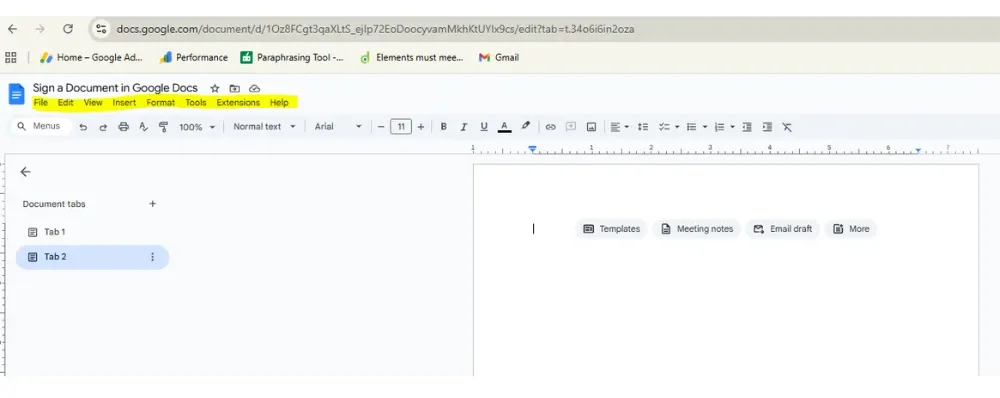
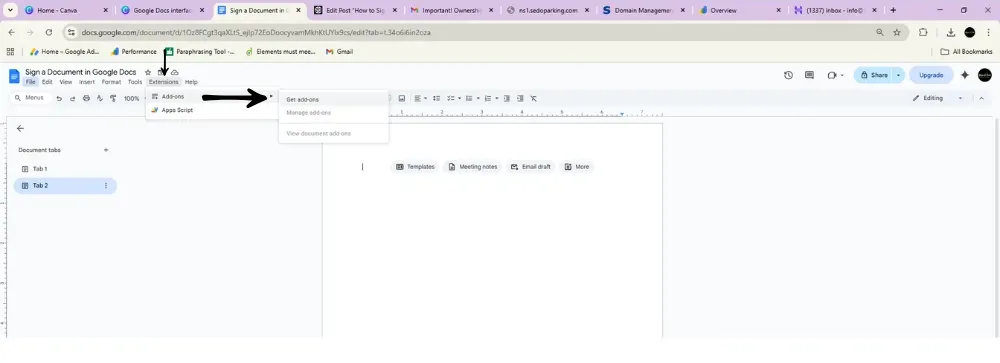
To install Docusign, open your document and select Extensions, then Add ons, then Get add ons. Search for Docusign in the marketplace and install the integration. Once installed, the add on becomes available across Docs, Gmail and Drive at no cost. You can sign documents or collect signatures from others with up to three free envelope sends.
After installation, refresh your document and check the Extensions menu. You should now see Docusign in the list. When you open it for the first time, log in or create a free account. No credit card is required, and you can start signing right away.
Sign a Document in Google Docs (Using Docusign)
Once the add on is ready, you can electronically sign documents directly within Google Docs. Create a new document or open an existing one you want to sign. Select the Docusign eSignature option from the from the Extensions menu. You will be prompted to sign in if you are not already logged in.
Docusign will request permission to access and upload your document. After approval, your Google Doc uploads directly into Docusign. From here, you can begin the signing process.
Add Recipients to specify who needs to sign or receive a copy of the document. You may include additional signers at any time. Add a custom message for the recipients, then continue to the next step to place the required fields.
Docusign allows you to drag and drop signature fields, date fields, and text fields onto the document. If multiple people need to sign, select the correct recipient in the upper corner before placing each field. After all fields are added, click Send.
You will receive instant confirmation that the document has been sent to the first signer. Docusign handles notifications and updates, so you can sit back while the signing process begins.
Accessing Completed Documents
When the signing process is complete, your file is automatically added to a folder in your Google Drive titled Docusign Completed. This folder is created the first time you send or sign a document. You can also access the completed file through your Docusign account under the manage tab.
From Google Drive, you can open, download or share the completed document. You may also email a copy or review the document details directly from the folder.
Electronic Signature on Google Docs (Using the Built-In Tool)
The process of adding an electronic signature to Google Docs is straightforward and takes only a few moments to complete. Here’s the fastest method available now:
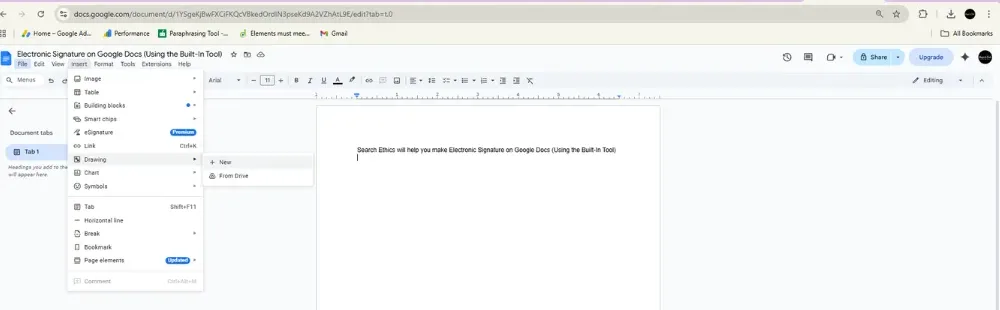
Start by opening the Google Doc that requires your signature. Navigate to the top menu bar and locate the Insert option. From the dropdown menu, select Drawing, then click on New to open the drawing interface.
Within the drawing window, you’ll find various tools at the top of the screen. Click on the Line icon, which reveals additional drawing options. Select the Scribble tool from the available choices. This tool allows freehand drawing, which is essential for creating your signature.
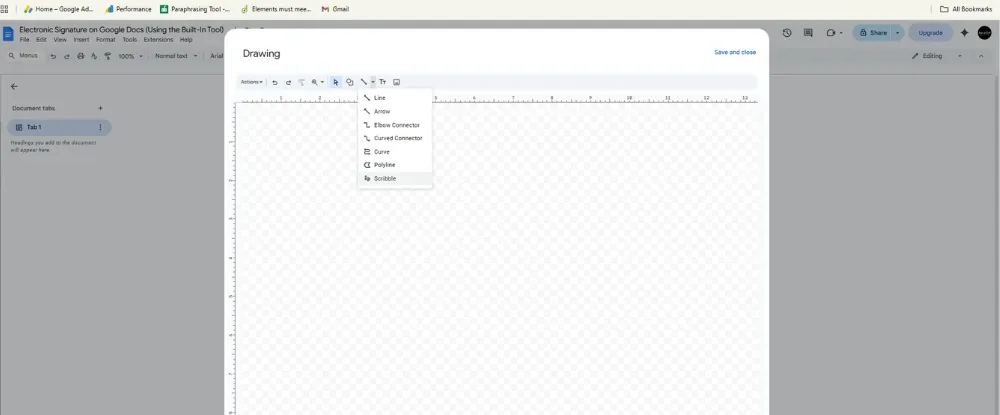
Using your mouse, touchpad, or touchscreen device, carefully draw your signature in the drawing space. Take your time to ensure your signature looks authentic and professional. If you make a mistake, you can use the undo button or clear the canvas and start over.
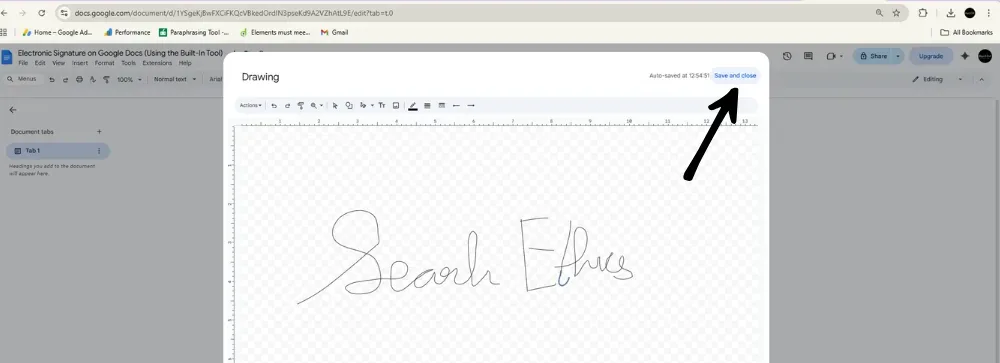
Once you’re satisfied with your signature, click the Save and Close button located in the top right corner of the drawing window. Your handwritten signature will immediately appear in your Google Doc at the cursor’s position. You can then resize, reposition, or format the signature image as needed to fit your document layout perfectly.
Final thoughts
Signing documents through Google Docs is now easier than ever thanks to the Docusign integration. The add on allows you to install, sign, send and manage electronic signatures without leaving your browser. With a smooth setup process and simple step by step workflow, users can confidently handle agreements, contracts and approvals from anywhere.
Frequently Asked Questions
1. How to sign a document in Google Docs using Docusign?
To sign a document in Google Docs with Docusign, first install the Docusign add-on from Extensions > Add-ons > Get add-ons. Once installed, open your document, select Docusign eSignature from the Extensions menu, and log in. Your document will upload automatically to Docusign, where you can add recipients, place signature fields by dragging and dropping them onto the document, and click Send. You’ll receive confirmation when the signing process is complete, and the signed document will be saved to a “Docusign Completed” folder in your Google Drive.
2. How do I add an electronic signature on Google Docs without third-party tools?
You can create an electronic signature on Google Docs using the built-in drawing tool. Open your document and go to Insert > Drawing > New. In the drawing window, click the Line icon and select the Scribble tool. Use your mouse, touchpad, or touchscreen to draw your signature. Once satisfied, click Save and Close, and your signature will appear in the document. You can then resize or reposition it as needed.
3. Where can I find completed signed documents?
When you sign a document in Google Docs using Docusign, completed files are automatically saved to a folder titled “Docusign Completed” in your Google Drive. This folder is created the first time you send or sign a document. You can also access completed documents through your Docusign account under the manage tab.
4. Can multiple people sign the same Google Doc electronically?
Yes, when using Docusign in Google Docs, you can add multiple recipients who need to sign the document. Simply add each signer as a recipient, then assign specific signature fields to each person by selecting the correct recipient name in the upper corner before placing their fields. Docusign handles the signing order and notifications automatically.
More Google news:
Meet Google’s New AI Assistant ‘Help Me Schedule’
Google’s New Era for Voice Search with Speech-to-Retrieval

Dony Garvasis is the founder of Search Ethics, a platform dedicated to transparency, authenticity, and ethical digital practices. With over 8 years of experience in SEO and digital marketing, I provide expert content on Tech, digital marketing, SEO, Artificial intelligence, gadgets, science, automobiles, lifestyle, tips, tutorials and much more. My mission is simple: Ethical Search, Genuine Results! I will make sure people everywhere get trustworthy and helpful information.