Now Reading: Google Meet Finally Fixes a Major Presentation Audio Problem
-
01
Google Meet Finally Fixes a Major Presentation Audio Problem
For years, Google Meet users have faced a frustrating limitation during screen sharing. Audio could only be shared from a single Chrome tab, which often disrupted presentations, product demos, training sessions, and multimedia playback. This restriction forced presenters to change workflows, duplicate content into a browser tab, or rely on external tools that reduced quality and consistency.
Google has now addressed this issue with a meaningful update. Google Meet supports full system audio sharing during presentations, allowing sound from any application on your computer to be heard clearly by meeting participants. This improvement removes one of the last remaining Chrome limitations related to audio sharing and significantly enhances the overall meeting experience.
The update is small in appearance but impactful in practice, especially for professionals who rely on Google Meet for frequent video calls.
What the new Google Meet system audio update offers
The most important change introduced by this update is the ability to share full system audio instead of being limited to a single browser tab. This means presenters can now play audio from desktop apps, media players, design tools, or training software while sharing their screen.
Previously, audio sharing worked only when presenting a Chrome tab and even then it was restricted to that specific tab. With the new option, presenters gain flexibility and better control over sound delivery, making meetings more professional and less interrupted.
This update is particularly useful for teams that conduct regular demos, educators running online classes, and trainers delivering multimedia heavy sessions.
Key features you should know
The update includes several important details that users should understand before using system audio sharing.
| Feature | Details |
|---|---|
| Full system audio sharing | Allows sharing audio from all apps when presenting a window or entire screen in Google Meet |
| Default setting | System audio sharing is disabled by default and must be enabled each time you present |
| Chrome tab behavior | Sharing a Chrome tab still uses the existing tab audio option with no changes |
| Supported operating systems | Available on macOS version 14.02 or newer and Windows 11 |
| Browser requirement | Requires Google Chrome version 142 or newer |
| Purpose of requirements | Ensures stable audio capture and avoids compatibility issues during meetings |
Why this update matters for everyday users
Audio quality plays a critical role in virtual communication. Poor or missing sound can break engagement, reduce clarity, and lead to misunderstandings. By enabling system wide audio sharing, Google Meet now supports more natural workflows.
Presenters no longer need to redesign presentations around browser tabs. Instead, they can use their preferred applications and trust that the audio will reach participants consistently. This is especially helpful when sharing videos, software walkthroughs, or background audio during collaborative sessions.
The update also improves reliability. Audio playback remains consistent across apps, which reduces sudden drops in sound or mismatched levels that often occurred with tab based sharing.
How to turn on system audio when presenting in Google Meet
Activating system audio sharing is straightforward, but it does require attention during each presentation.
Start by joining or starting a Google Meet call. Click the Present button and choose either Window or Entire Screen. After making your selection, a prompt will appear where you can enable the option labeled Also share system audio. You must turn this on every time you present since it does not remain enabled by default.
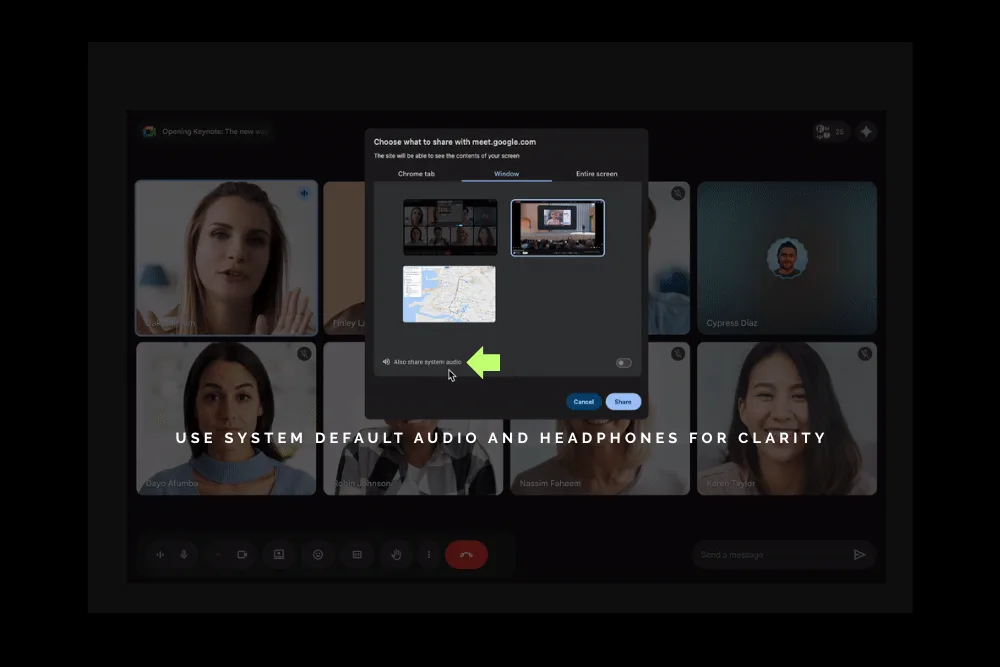
If you choose to share a Chrome tab instead, you will continue to see the option to share tab audio, which works as it did before.
For best results, Google recommends setting the audio output in Meet to your system default output. Using headphones is also advised to reduce feedback and echo during presentations.
macOS permissions and first time setup
Mac users will encounter an additional step the first time they try to share system audio. Google Meet will request permission to capture system sound. This permission must be granted through System Settings for the feature to work properly.
Once permission is granted, future presentations will not require repeating this step, although the system audio toggle must still be enabled each time you present.
It is important to note that users who merge their audio with other devices using adaptive audio are unable to use device audio sharing. Ensuring a clean and standard audio output setup is essential for compatibility.
Related search: Google’s New Era for Voice Search with Speech-to-Retrieval
Managing volume and audio quality
Google Meet does not provide separate volume controls for shared system audio. Volume levels are controlled entirely through your operating system mixer and individual app settings.
If participants report that audio is too quiet or too loud, adjust your system volume or the volume within the app you are sharing. This gives presenters flexibility but also places responsibility on them to monitor audio levels.
For users who rely on mixers or virtual audio devices, it is important to verify that the system default output is set correctly. The shared audio will always follow the system default output, so incorrect routing can lead to missing sound.
Who benefits most from this update
This feature is particularly valuable for professionals who host frequent video calls each month. Teams conducting training sessions can now deliver clearer lessons. Designers and developers can demonstrate tools without workarounds. Content creators and marketers can present multimedia with consistent playback.
Even casual users benefit from fewer interruptions and smoother presentations. By removing friction around audio sharing, Google Meet becomes a more reliable platform for collaboration.
Availability and rollout
Device audio sharing in Google Meet is available starting now. Users who meet the operating system and browser requirements can begin using it immediately. No additional downloads or extensions are needed beyond updating Chrome to a compatible version.
This update reflects Google’s continued focus on improving core communication features rather than adding unnecessary complexity.
Final thoughts
Google Meet’s new system audio sharing capability solves one of the most persistent frustrations faced by presenters. By allowing full device audio during screen sharing, it enables clearer communication, better demos, and more professional meetings.
While the feature requires manual activation each time and careful volume management, the benefits far outweigh these minor steps. For anyone who depends on Google Meet for regular collaboration, this update represents a meaningful improvement that enhances both usability and reliability.
Frequently asked questions
Can I share system audio and a Chrome tab at the same time?
No. When sharing a Chrome tab, audio remains limited to that tab. System audio is available only when sharing a window or the entire screen.
Is system audio sharing enabled by default?
No. You must enable the Also share system audio option every time you present.
Which operating systems support this feature?
System audio sharing works on macOS version 14.02 or newer and Windows 11.
Do I need a specific Chrome version?
Yes. Chrome version 142 or newer is required to use system audio sharing.
Why can’t participants hear my audio?
Check that your system default output is selected in Google Meet and confirm that the correct app volume and system volume are set properly.
Do Mac users need special permissions?
Yes. The first time you share system audio on macOS, you must grant permission in System Settings for Meet to capture system sound.
Related search: Google Workspace Studio and the Future of Enterprise AI Agents

Dony Garvasis is the founder of Search Ethics, a platform dedicated to transparency, authenticity, and ethical digital practices. With over 8 years of experience in SEO and digital marketing, I provide expert content on Tech, digital marketing, SEO, Artificial intelligence, gadgets, science, automobiles, lifestyle, tips, tutorials and much more. My mission is simple: Ethical Search, Genuine Results! I will make sure people everywhere get trustworthy and helpful information.