Now Reading: 10 Best Cybersecurity Tips for Protecting My Home WiFi Network
-
01
10 Best Cybersecurity Tips for Protecting My Home WiFi Network
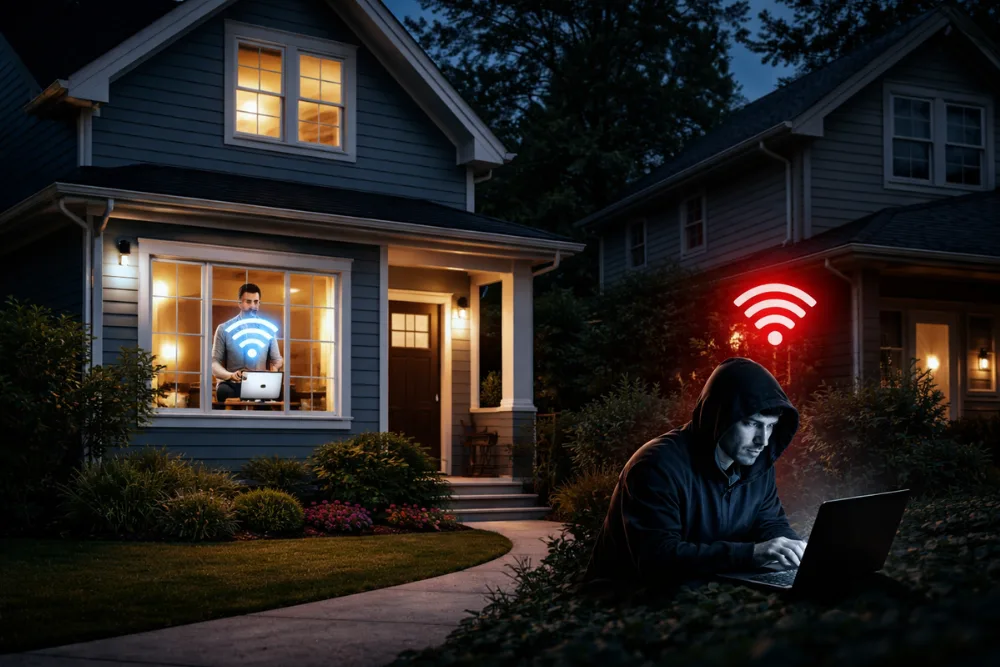
To protect your home WiFi network effectively, change default router settings, enable strong encryption like WPA3 or WPA2, update firmware regularly, disable risky features such as WPS, use strong passwords, secure IoT devices, and monitor connected devices. These essential cybersecurity tips significantly reduce the risk of hacking and data theft.
In today’s digital world, your home WiFi network is the gateway to your personal information, financial details, smart devices, and daily online activities. From smartphones and laptops to smart televisions and connected appliances, nearly every device in a modern home depends on a secure wireless connection. Without proper cybersecurity measures, your network can become an easy target for cybercriminals. Implementing proven and reliable security practices ensures your private data remains protected and your online experience stays safe.
Tip 1: Change Default Router Settings
One of the most critical steps in securing your home WiFi network is changing the default router settings. When you purchase a router, it comes with a default administrative username and password. These default credentials are widely known and easily accessible to attackers, which makes them a primary target for exploitation. Leaving them unchanged significantly increases your vulnerability to unauthorized access.
Immediately after setting up your router, access its administrative panel and change both the username and password. Choose a strong, unique password that includes a mix of uppercase letters, lowercase letters, numbers, and symbols. Avoid using predictable combinations or personal information such as birthdays or names. In addition, change the default network name, also known as the SSID, to something unique and non identifiable. A customized SSID makes it harder for attackers to determine the type of router you are using, which reduces the chances of targeted attacks.
Tip 2: Enable Strong Encryption
Encryption plays a central role in protecting the data transmitted over your WiFi connectivity. When encryption is enabled, the information sent between your devices and your router is scrambled, making it extremely difficult for outsiders to intercept and read.
Always use the strongest encryption standard supported by your router. Ideally, select WPA3 Personal, which offers the most advanced protection currently available for home networks. If WPA3 is not available, choose WPA2 Personal as a secure alternative. Avoid outdated encryption protocols such as WEP or older versions of WPA, as they contain known vulnerabilities that attackers can easily exploit. Ensuring your network runs on strong encryption significantly enhances your defense against unauthorized access and data interception.
Tip 3: Keep Router Firmware Updated
Router firmware is the internal software that controls how your router functions. Like any software, it can contain security vulnerabilities that are discovered over time. Manufacturers release firmware updates to patch these vulnerabilities and improve overall security performance.
Many routers do not update automatically, which means you must manually check for updates through the router’s administrative interface. Make it a habit to review and install firmware updates every few months. Regular updates ensure your router is protected against the latest known threats and exploits. Neglecting firmware updates leaves your network exposed to preventable security risks.
Tip 4: Turn Off WiFi When Not in Use
Leaving your WiFi router on continuously can create unnecessary exposure, especially when you are away from home for extended periods. Turning off your router when it is not needed eliminates the possibility of remote attacks during that time.

This practice is particularly useful when traveling or when your home will remain unoccupied. By disabling the wireless signal temporarily, you remove the opportunity for attackers to attempt unauthorized access. While this step may not always be convenient, it serves as a simple and effective precaution against potential threats.
Tip 5: Use a Strong WiFi Password
Your WiFi password acts as the first line of defense against unauthorized access. A weak or easily guessable password can allow attackers to connect to your network without your knowledge.
TRY STRONG WIFI PASSWORD GENERATOR
Create a password that is long, complex, and unique. Combine uppercase letters, lowercase letters, numbers, and special characters to increase its strength. Avoid using common words, simple number sequences, or personal details. A strong WiFi password significantly reduces the risk of brute force attacks and unauthorized connections. Additionally, consider updating your password periodically to maintain a high level of security.
Tip 6: Consider Using a VPN
A Virtual Private Network, or VPN, adds an extra layer of protection to your online activities. A VPN encrypts your internet traffic and masks your IP address, making it more difficult for third parties to track your online behavior or intercept sensitive data.
While a VPN is especially useful on public or less secure networks, it can also enhance privacy and security at home. By encrypting outgoing and incoming traffic, a VPN ensures that your browsing activity remains confidential. This additional security measure can be particularly beneficial when handling sensitive information such as online banking or personal communications.
Tip 7: Hide Your Network SSID
Hiding your network’s SSID prevents it from appearing in the list of available WiFi networks when nearby devices perform a scan. This can deter casual or opportunistic attackers who look for visible networks to target.
Also read: What is Wi Fi Network SSID
Although hiding your SSID does not provide complete protection on its own, it adds another layer to your overall security strategy. Attackers who are determined and technically skilled can still discover hidden networks, so this measure should be combined with strong encryption and password protection. When used as part of a layered security approach, hiding your SSID contributes to reducing unnecessary exposure.
Tip 8: Disable WPS and Remote Management
WiFi Protected Setup, commonly known as WPS, was designed to make connecting devices to your network easier. However, this convenience can also create a security weakness. Attackers may exploit vulnerabilities in WPS to gain unauthorized access to your network.
Similarly, remote management features allow you to control your router settings from outside your home network. While this can be useful in certain situations, it also increases the potential attack surface. If you do not specifically need WPS or remote management, it is best to disable both features. Turning off unnecessary functionalities reduces the number of entry points that cybercriminals can attempt to exploit.
Tip 9: Secure IoT Devices on Your Network
Internet of Things devices, commonly referred to as IoT devices, include smart thermostats, cameras, voice assistants, and other connected appliances. Many of these devices lack robust built in security features, which makes them attractive targets for cybercriminals.
To minimize risk, place IoT devices on a separate guest network if your router supports this feature. Network segmentation prevents compromised devices from accessing your primary devices such as laptops or smartphones. Additionally, ensure each IoT device has a strong password and updated firmware. Regularly checking for updates and applying them promptly helps close known security gaps.
Tip 10: Monitor Your Network Regularly
Regular monitoring of your home network is essential for early detection of suspicious activity. Most routers provide a feature that allows you to view all connected devices. Periodically review this list and verify that every device is recognized and authorized.
If you notice unfamiliar devices connected to your network, take immediate action by changing your WiFi password and reviewing your security settings. Early detection of unauthorized access can prevent further compromise. Consistent monitoring empowers you to maintain control over your network and respond quickly to potential threats.
Also read: Best Cybersecurity Tips for Protecting my Home Wi-Fi Network
Conclusion
Protecting your home WiFi network requires a proactive and layered cybersecurity approach. By changing default router settings, enabling strong encryption, updating firmware, disabling unnecessary features, and using strong passwords, you create a solid foundation for network security. Adding measures such as VPN usage, hiding your SSID, securing IoT devices, and monitoring connected devices further strengthens your defense.
Cyber threats continue to evolve, but implementing these best practices significantly reduces your vulnerability. A secure home network safeguards your personal information, financial data, and connected devices, ensuring peace of mind in an increasingly connected world.
Frequently Asked Questions
What is the most important step to secure my home WiFi network?
Changing default router credentials and enabling strong encryption such as WPA3 or WPA2 are among the most important first steps to secure your network.
How often should I update my router firmware?
You should check for firmware updates every few months and install them promptly to patch known security vulnerabilities.
Is hiding my SSID enough to protect my network?
No, hiding your SSID is not sufficient on its own. It should be combined with strong encryption, secure passwords, and other security measures.
Why should I disable WPS?
WPS can contain security weaknesses that attackers may exploit. Disabling it reduces potential entry points into your network.
Do I need a VPN at home?
While not mandatory, a VPN adds an extra layer of encryption and privacy, especially when handling sensitive information.
How can I tell if someone is using my WiFi without permission?
Check your router’s connected devices list regularly. Unknown devices may indicate unauthorized access, requiring immediate password changes and security review.
Also read: Can the Whatsapp be Hacked? Truth About Phishing Attacks

Dony Garvasis is the founder of Search Ethics, a platform dedicated to transparency, authenticity, and ethical digital practices. With over 8 years of experience in SEO and digital marketing, I provide expert content on Tech, digital marketing, SEO, Artificial intelligence, gadgets, science, automobiles, lifestyle, tips, tutorials and much more. My mission is simple: Ethical Search, Genuine Results! I will make sure people everywhere get trustworthy and helpful information.