Now Reading: Best Cybersecurity Tips for Protecting my Home Wi-Fi Network
-
01
Best Cybersecurity Tips for Protecting my Home Wi-Fi Network
The best way to protect your home Wi Fi network is to change default router settings, use strong encryption, update firmware regularly, disable risky features and monitor connected devices. These steps reduce hacking risks protect personal data and keep every device on your network secure. A layered security approach offers the strongest long term protection.
Home Wi Fi networks are now the backbone of modern life. From remote work and online banking to smart home devices and entertainment systems everything depends on a secure internet connection. Unfortunately home networks are also common targets for cybercriminals because many people leave default settings unchanged or rely on outdated security practices. This guide explains the most effective and practical cybersecurity tips to protect your home Wi Fi network using proven methods trusted by security professionals.
Why Home Wi Fi Security Matters
A home Wi Fi network connects laptops, smartphones, tablets, smart televisions, cameras, speakers and many other devices. Each connected device represents a possible entry point for attackers. If someone gains unauthorized access they can steal personal data monitor activity inject malware or even use your network for illegal purposes.
Home networks are often less protected than business networks which makes them attractive targets. Attackers commonly exploit weak passwords, outdated firmware and insecure router features. By understanding and applying basic cybersecurity practices you can significantly reduce these risks and maintain control over your digital environment.
Change Default Router Settings Immediately
One of the most important steps in securing your home Wi Fi network is changing the default router settings. Manufacturers ship routers with standard administrative usernames and passwords. These default credentials are widely known and easy for attackers to exploit.
Start by logging into your router’s admin panel and changing the administrator username and password. Use a strong password that combines uppercase letters, lowercase letters numbers and symbols. Avoid using names, birthdays or common words. A unique admin password ensures that only you can change critical network settings.
You should also change the default network name known as the SSID. Default SSIDs often reveal the router brand or model which can help attackers identify vulnerabilities. Choose a unique and non identifiable name that does not reveal personal information or your router manufacturer.
Enable Strong Wi Fi Encryption
Encryption is the foundation of Wi Fi security. It protects data as it travels between your devices and the router. Without proper encryption attackers can intercept sensitive information such as passwords, financial details and private messages.
Use the strongest encryption standard your router supports. WPA3 Personal is the most secure option currently available. If your router does not support WPA3 then WPA2 Personal is the next best choice. Both standards encrypt network traffic effectively and protect against unauthorized access.
Avoid older encryption methods such as WEP or early WPA versions. These protocols have known vulnerabilities and can be broken easily with modern tools. Selecting strong encryption in your router settings dramatically improves your network’s security.
Keep Router Firmware Updated
Router firmware controls how your device operates and communicates with connected devices. Like any software firmware can contain security flaws that attackers exploit. Manufacturers release updates to fix these vulnerabilities and improve performance.
Many home routers do not update automatically. It is essential to check for firmware updates manually every few months. Log in to your router’s admin panel and look for firmware update options. Apply updates as soon as they are available to ensure your router is protected against known threats.
Keeping firmware updated not only enhances security but also improves network stability and compatibility with newer devices. This simple habit can prevent many common attacks.
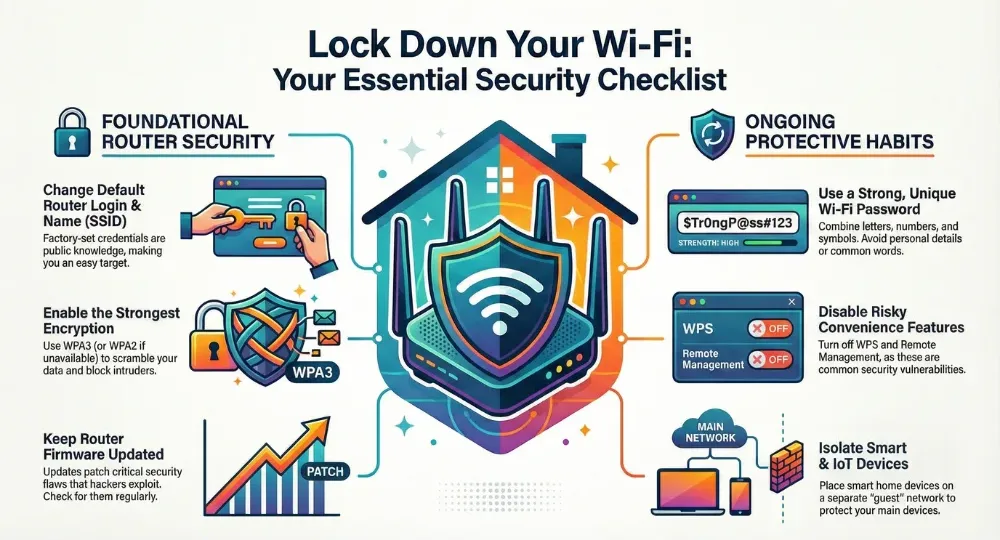
Essential Wi-Fi Security Checklist Guide Infographic
Disable WPS and Remote Management
Wi Fi Protected Setup and remote management features are designed for convenience but can introduce serious security risks. WPS allows devices to connect to your network easily but has known vulnerabilities that attackers can exploit through brute force methods.
Remote management lets you access your router settings from outside your home network. While useful in some cases it increases exposure to external attacks. If you do not absolutely need remote access it is safer to disable this feature.
By turning off WPS and remote management you reduce the number of ways attackers can interact with your router. Fewer exposed features mean fewer opportunities for compromise.
Use a Strong and Unique Wi Fi Password
Your Wi Fi password is the primary barrier preventing unauthorized access. Weak or predictable passwords are one of the most common reasons home networks get hacked.
Create a strong Wi Fi password that is long, complex and unique. Use a mix of letters, numbers and symbols. Avoid dictionary words personal details or reused passwords from other accounts. A strong password makes it extremely difficult for attackers to guess or crack.
Change your Wi Fi password periodically especially if you suspect unauthorized access or have shared it with many guests. Regular password updates help maintain long term security.
Consider Using a Virtual Private Network
A virtual private network adds an extra layer of protection by encrypting your internet traffic and hiding your IP address. While a VPN is especially useful on public networks it can also enhance privacy on your home Wi Fi network.
Checkout FastVPN to Protect your online identity
Using a VPN ensures that even if someone intercepts your data it remains unreadable. This is particularly helpful when accessing sensitive accounts or handling confidential information. A VPN complements router level security measures and strengthens your overall cybersecurity posture.
Hide Your Network Name for Added Privacy
Hiding your Wi Fi network name makes it invisible to casual scans. While this does not provide complete security it can deter opportunistic attackers who target visible networks.
When the SSID is hidden, devices must already know the network name to connect. This adds a small barrier that reduces unwanted attention. However hidden networks can still be detected with advanced tools so this method should be used as part of a layered security strategy rather than a standalone solution.
Turn Off Wi Fi When Not in Use
If you are away from home for an extended period turning off your Wi Fi router can reduce the risk of attacks. An inactive network cannot be targeted remotely.
This practice is especially useful during vacations or long absences. Powering down your router removes exposure and gives attackers no opportunity to exploit vulnerabilities while you are away. It is a simple step that can provide peace of mind.
Secure Smart and IoT Devices
Smart home and IoT devices often have limited security features. Many use default passwords, outdated firmware or weak authentication methods. These devices can become easy targets and entry points into your main network.
Whenever possible place smart devices on a separate guest network. This isolates them from your primary devices such as computers and smartphones. Ensure that each smart device has a strong unique password and updated firmware.
Regularly review device settings and disable unnecessary features. Treat IoT devices with the same level of caution as computers since they share the same network and can impact overall security.
Monitor Connected Devices Regularly
Monitoring your network helps you detect suspicious activity early. Most routers allow you to view a list of connected devices through the admin panel. Review this list periodically to ensure only authorized devices are connected.
If you notice unfamiliar devices disconnect them immediately and change your Wi Fi password. Early detection can prevent data theft and further compromise. Staying aware of your network activity is a key part of effective cybersecurity.
Build a Layered Security Approach
No single measure can fully secure a home Wi Fi network. The strongest protection comes from combining multiple security practices. Strong passwords encryption updates feature management and monitoring work together to create a robust defense.
A layered approach ensures that even if one security measure fails others remain in place. This strategy significantly reduces the likelihood of successful attacks and protects your personal information over the long term.
Also read: Can the Whatsapp be Hacked? Truth About Phishing Attacks
Bottom Line
Protecting your home Wi Fi network is essential in a connected world where personal data and digital privacy are constantly at risk. By changing default settings, enabling strong encryption, keeping firmware updated, disabling risky features and monitoring connected devices you create a secure foundation for all online activities. Consistent attention to these cybersecurity practices ensures your home network remains safe reliable and resilient against evolving threats.
Frequently Asked Questions
What is the most important step to secure home Wi Fi?
Changing default router credentials and using strong encryption are the most critical steps. These prevent unauthorized access and protect data from interception.
How often should router firmware be updated?
Check for firmware updates every few months and apply them immediately when available to fix security vulnerabilities.
Is hiding the Wi Fi network name enough for security?
No hiding the network name only adds minor privacy. It should be combined with strong passwords encryption and other security measures.
Should smart devices be on a separate network?
Yes placing IoT devices on a guest network reduces risk and prevents them from accessing sensitive devices.
Can a VPN improve home Wi Fi security?
Yes a VPN encrypts internet traffic and adds an extra layer of privacy especially for sensitive online activities.
Also read: 10 Best Cybersecurity Tips for Protecting My Home WiFi Network

Dony Garvasis is the founder of Search Ethics, a freelance SEO consultant, and a passionate technology blogger. With over 8 years of experience in SEO, blogging and content marketing, I provide expert content on Tech, digital marketing, SEO, Artificial intelligence, gadgets, science, automobiles, lifestyle, tips, tutorials and much more. My mission is simple: Ethical Search, Genuine Results! I will make sure people everywhere get trustworthy and helpful information.